All Methods of Exporting MBOX file to Outlook PST
Converting MBOX to PST is one of the most common email migration tasks typically when moving from Thunderbird, Apple Mail, or another MBOX-based client over to Microsoft Outlook. Here’s everything you need to know, from free manual methods to dedicated tools, along with the trade-offs for each approach.
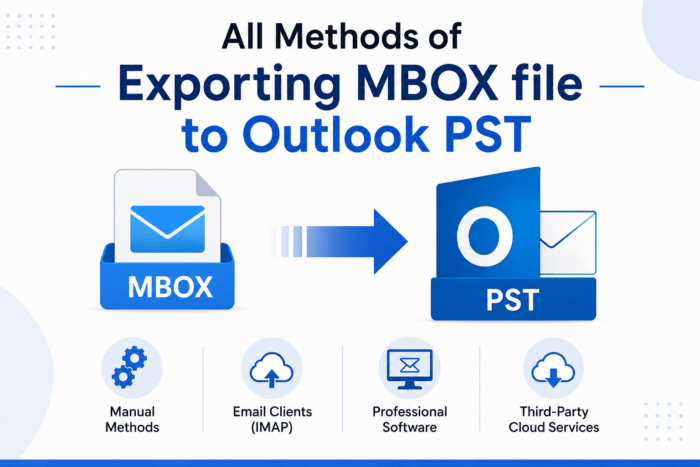
Quick Decision Matrix
| Method | Best For | Needs Outlook? | Preserves Folders? | Speed | ||||
| Gmail IMAP Bridge | Small-to-medium mailboxes | Yes (Classic) | Mostly (labels differ) | Hours to days | ||||
| EML Drag & Drop | Very small folders (dozens/hundreds) | Yes | Limited | Slow | ||||
| Dedicated Converter | Large mailboxes, many folders | Yes (for PST via MAPI) | Yes | Fast | ||||
| Python/CLI Script | Tech-savvy, bulk, offline | No | Manual | Medium | ||||
Critical: Classic Outlook vs. New Outlook
This is the #1 thing people trip on. Microsoft’s “New Outlook” has limited PST export capabilities. For any method that ends with exporting a PST, you must use Classic Outlook. If the export options are missing, toggle back to Classic Outlook from the ribbon.
Method 1: Gmail IMAP Bridge (Free, Most Common)
This is the most widely-used free method. It doesn’t convert the MBOX directly — instead, it migrates mail through a Gmail IMAP account and then exports a PST from Outlook.
Step-by-Step
1. Enable IMAP in Gmail
Go to Gmail → Settings → See all Settings → Forwarding and POP/IMAP → Enable IMAP → Save.
2. Generate a Gmail App Password
Go to myaccount.google.com → Security → enable 2-Step Verification.
Then go to App Passwords, create one for “Mail” → “Thunderbird”, copy the 16-character password.
3. Add Gmail to Thunderbird
In Thunderbird: Account Settings → Account Actions → Add Mail Account.
Enter your Gmail address and the App Password (not your regular password). Select IMAP.
4. Copy MBOX Emails into Gmail
In Thunderbird, create a folder under your Gmail account (e.g., “MBOX Migration”).
Select emails from your MBOX mailbox and drag/copy them into that Gmail folder.
Wait for sync to complete — verify the emails appear in Gmail’s web interface.
5. Add Gmail to Outlook
In Classic Outlook: File → Account Settings → Add the same Gmail account with the App Password.
Wait for full sync. This can take hours for large mailboxes. Compare folder/message counts.
6. Export PST from Outlook
File → Open & Export → Import/Export → Export to a file → Outlook Data File (.pst).
Select the Gmail folder, check Include subfolders, choose a local save path (not OneDrive!), and finish.
Limitations
- IMAP only transfers mail – no contacts, calendars, or tasks.
- Gmail labels ≠ MBOX folders; duplicates can occur when one message has multiple labels.
- Privacy concern: mail is uploaded to Gmail temporarily.
- Large mailboxes (multi-GB) can take hours or even days to sync over IMAP.
Method 2: EML Drag & Drop (Free, Small Folders Only)
Export emails from Thunderbird as individual EML files, then drag them directly into an Outlook PST.
Step-by-Step
1. Export MBOX emails to EML
In Thunderbird, install the ImportExportTools NG add-on.
Right-click a folder → ImportExportTools NG → Export all messages → EML format.
For a handful of emails, you can also use “Save As” manually.
2. Create a blank PST in Outlook
Outlook: New Items → More Items → Outlook Data File → name it and save.
3. Drag EML files into the PST
Create folders inside the PST matching your original structure.
Drag EML files from File Explorer into those PST folders.
Limitations
- Painfully slow for more than a few hundred emails.
- Folder hierarchy is manual — you recreate it yourself.
- Outlook can freeze with large batch drags. Do batches of 50-100.
Method 3: Dedicated MBOX to PST Converter (Recommended for Large/Complex Mailboxes)
If you’re dealing with multi-GB MBOX files, dozens of folders, or tens of thousands of emails, a dedicated converter is worth the investment. Popular options include:
General Workflow
- Download and install the converter.
- Browse to select your MBOX file(s) — most tools support batch conversion.
- Preview the mailbox contents before converting.
- Select PST as the output format.
- Apply optional filters (date range, sender, subject, etc.) for selective conversion.
- Choose an output folder and start the conversion.
- Open the resulting PST in Outlook to verify.
Advantages
- Preserves the exact folder hierarchy.
- Offline — no data uploaded anywhere.
- Handles large files without crashing.
- Selective conversion with filters (date, sender, subject).
- Most tools have a free trial (usually first 20-50 items per folder).
Method 4: Python/CLI Scripting (Free, Power Users)
If you’re comfortable with the command line, several open-source tools can help:
Parse the MBOX file using Python’s built-in mailbox module.
Extract each message and convert to .eml.
Use win32com.client (Windows only, Outlook required) to programmatically create a PST and import messages.
Alternatively, convert to EML then use Outlook’s COM automation for the drag-in step.
Note: Creating a true PST file without Outlook installed is extremely difficult. PST is a proprietary binary format. The open-source libpst library can read PST files but can’t reliably write them. All script-based approaches ultimately depend on Outlook’s COM interface on Windows.
Bottom Line
Your Situation Best Approach
| < 500 emails, few folders | Method 2 (EML drag & drop) |
| < 1 GB, Classic Outlook available | Method 1 (Gmail IMAP bridge) |
| > 1 GB, many folders, privacy-sensitive | Method 3 (Dedicated converter) |
| Automated/scripted, technical user | Method 4 (Python + Outlook COM) |
Migration is become complicated when you have a complex structure or confidential data. Choosing the right method helps you to move single or multiple MBOX file to Outlook at once.